
1. Enable and deploy Atlassian from the Marketplace
Log into https://app.observee.ai, and click on Connect. You will be given a list of servers to choose from. Scroll down and find Atlassian. Make sure it is toggled to Enterprise
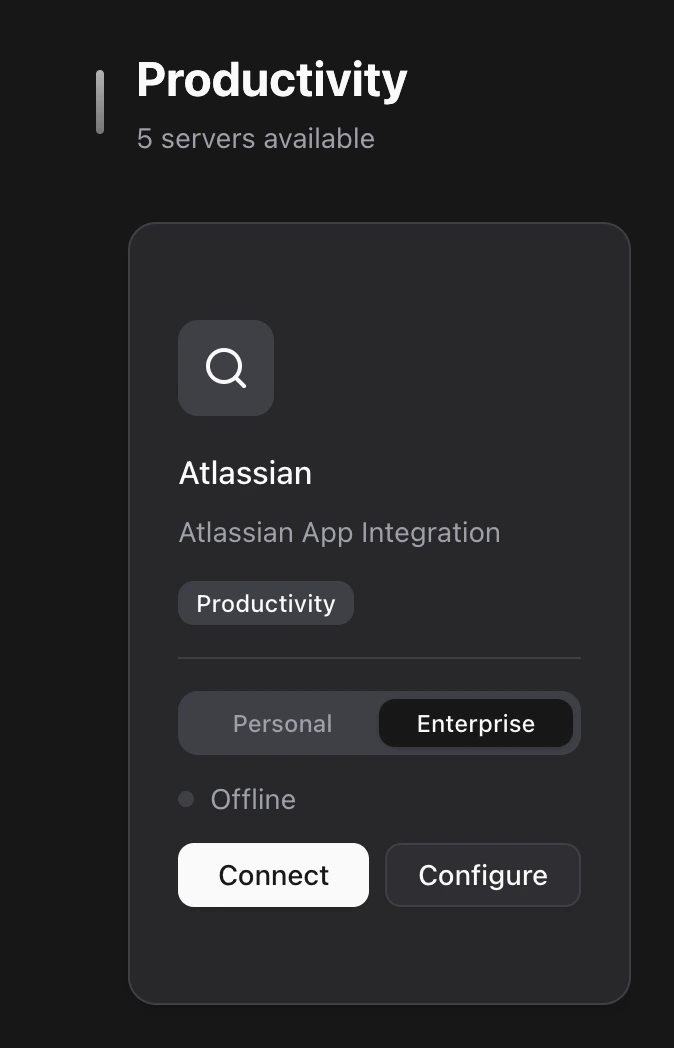
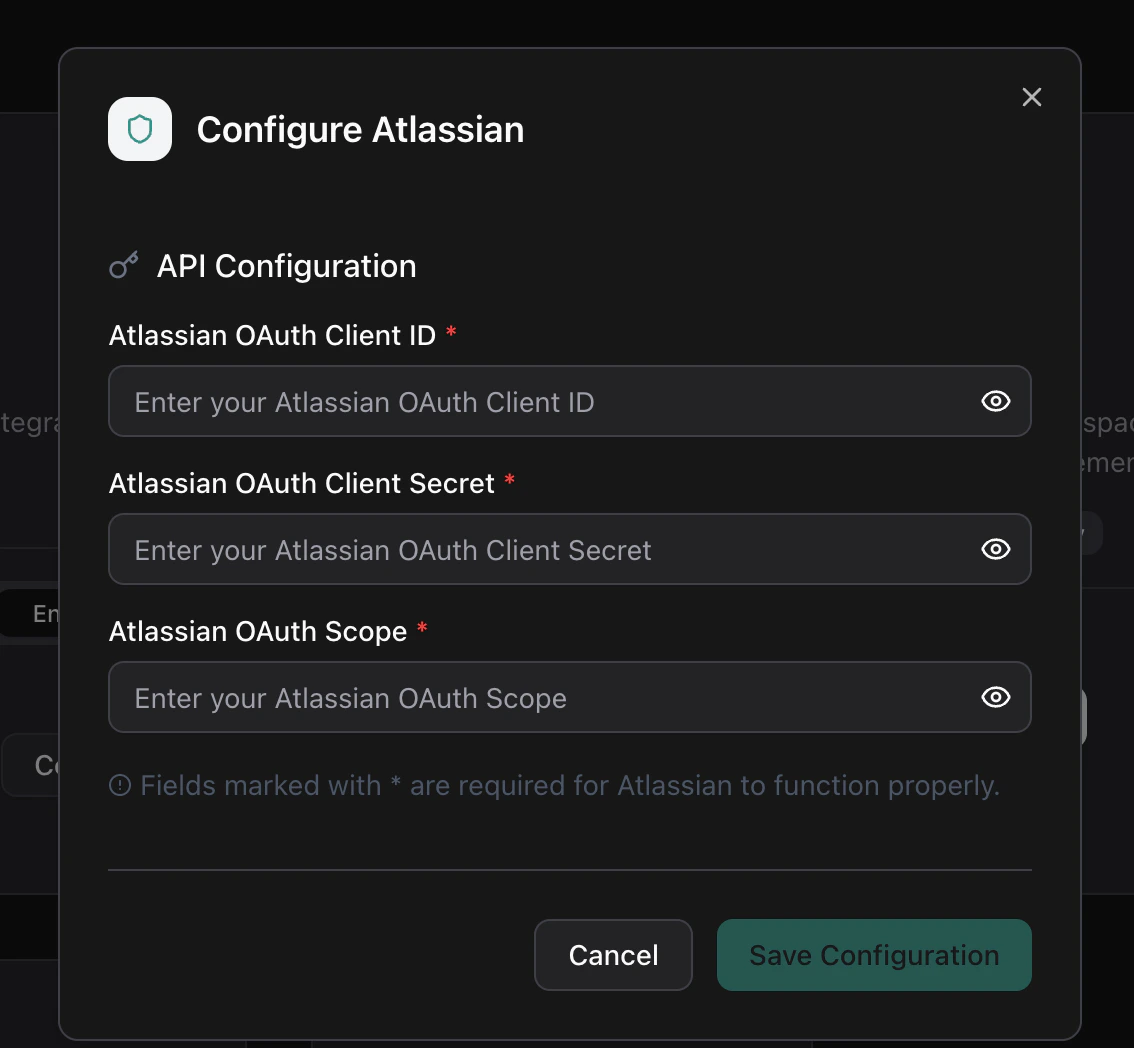
There are two types of enterprise requests: One is via the Observee App, where you can use our hosted Atlassian application to authenticate, and the other is through your own custom app. If you would like to use our hosted app, just click Connect. Otherwise, click Configure, and set your App Client IDs, Secrets, and Scopes:
As per Atlassian’s documentation, scopes must be separated by spaces. Furthermore, you must have offline_access as a scope for the MCP server to have the proper authorizations.
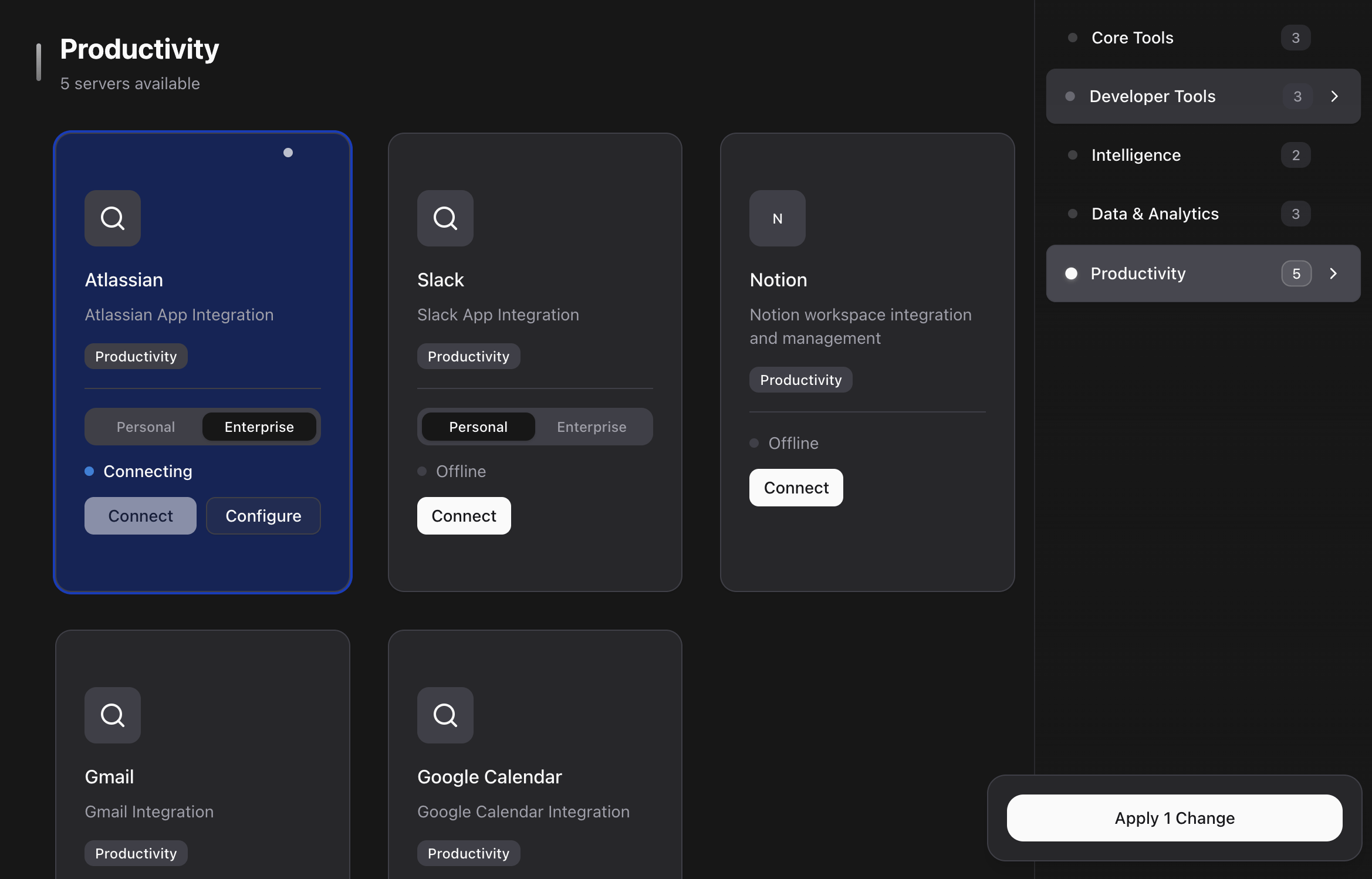
Once you have either clicked Connect or Configure, you can now deploy your MCP server. Click the white button at the bottom right hand corner of the screen:
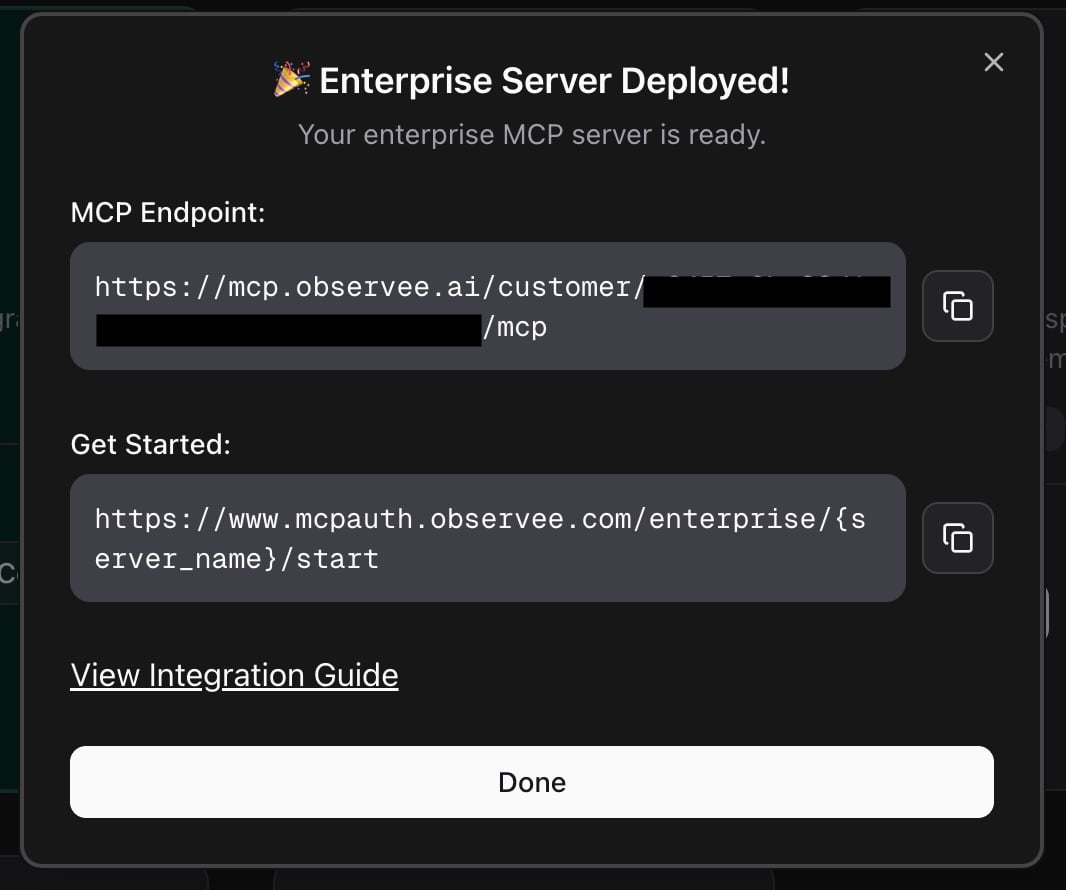
This will begin the deployment process. Once it is complete, you will see this popup:
You can now move on to the next steps, where you will use the MCP Auth URL to programmatically authenticate into your server.
2. Obtaining an API Key
In your Observee dashboard, click on API Key. There, you can generate a new key for yourself. This will be referenced throughout the code and your environment variables as OBSERVEE_API_KEY
3. Calling the Auth endpoint
Make a POST request to https://mcpauth.observee.ai/auth/atlassian/start. Your POST body must contain your OBSERVEE_API_KEY as a field.
3.1 Enterprise Requests via Observee App
In order to make a request using Observee’s hosted Atlassian app, you only need your API key:
curl -X POST 'https://mcpauth.observee.ai/enterprise/atlassian/start' \
--data-raw '{
"OBSERVEE_API_KEY": "<YOUR_API_KEY_HERE>"
}'
3.2 Enterprise Requests for Custom App
If you would like to make a custom Enterprise request, first you will have to set the callback URL in your desired app in the Atlassian Developer Console. You can do this by selecting your app, then once your app page has loaded, click on Authorization (left hand side) —> click Configure —> set Callback URL
The callback URL Observee uses for Atlassian is https://mcpauth.observee.ai/auth/atlassian/callback. Make sure you save your settings.
Furthermore, you will need to obtain your Client ID, Client Secret, and your desired scopes. Once you have these, you will need to set the POST request as follows:
curl -X POST 'https://mcpauth.observee.ai/enterprise/atlassian/start' \
--data-raw '{
"OBSERVEE_API_KEY": "<YOUR_API_KEY_HERE>",
"ATLASSIAN_OAUTH_CLIENT_ID": "<YOUR_CLIENT_ID_HERE>",
"ATLASSIAN_OAUTH_CLIENT_SECRET": "<YOUR_CLIENT_SECRET_HERE>",
"ATLASSIAN_OAUTH_SCOPE": "<YOUR_SCOPE_HERE>"
}'
4. Authentication and Callback
Once you have sent the request, you will receive a body that provides a URL to authenticate into Atlassian. It will look something like this:
{
"url": "https://auth.atlassian.com/authorize?..."
}
Click on it, and it will redirect you to log in. Once you have logged in, you will get a JSON response that looks like this:
{
"success": true,
"customer_id": "<YOUR_CUSTOMER_ID_HERE>",
"client_id": "<YOUR_CLIENT_ID_HERE>"
}
Your authenticated tokens are now stored on Observee’s secure storage. Make sure you store your client_id to access your customer’s OAuth tokens (same across multiple apps). You will see how to set it up in the steps below.
5. Setting up your MCP Client
Here’s the full code for the MCP client:
import { experimental_createMCPClient, generateText } from "ai";
import { Experimental_StdioMCPTransport } from "ai/mcp-stdio";
import { openai } from "@ai-sdk/openai";
import "dotenv/config";
async function main() {
const clients: any[] = [];
// Check for required environment variables
if (!process.env.OPENAI_API_KEY) {
console.log("Please add your OpenAI API key to the .env file:");
return;
}
// Embed the MCP tools configuration directly
const mcpToolsJson = {
mcpServers: {
"observee-mcp": {
command: "npx",
args: [
"mcp-remote",
"YOUR_MCP_URL"
],
},
},
};
try {
// Initialize MCP clients for each server in the configuration
const toolSets: Record<string, any>[] = [];
for (const [serverName, serverConfig] of Object.entries(
mcpToolsJson.mcpServers,
)) {
console.log(`Connecting to ${serverName}...`);
const transport = new Experimental_StdioMCPTransport(serverConfig);
const client = await experimental_createMCPClient({
transport,
});
clients.push(client);
const tools = await client.tools();
toolSets.push(tools);
console.log(
`Connected to ${serverName} - found ${Object.keys(tools).length} tools`,
);
}
// Combine all tools from all servers
const allTools = toolSets.reduce(
(acc, toolSet) => ({ ...acc, ...toolSet, }),
{},
);
console.log(`Total tools available: ${Object.keys(allTools).length}`);
console.log("Available tools:", Object.keys(allTools).slice(0, 10), "...");
// Use the tools with generateText
const response = await generateText({
model: openai("gpt-4o"),
tools: allTools,
messages: [
{
role: "user",
content: "What is the current time? Also, can you help me check my recent emails? and also check for my jira issues in project sms",
},
],
});
console.log("\n--- AI Response ---");
if (response.text && response.text.trim()) {
console.log(response.text);
} else {
console.dir(response, { depth: null });
}
if (response.toolCalls && response.toolCalls.length > 0) {
console.log("\n--- Tool Calls Made ---");
response.toolCalls.forEach((call, index) => {
console.log(`${index + 1}. ${call.toolName}`);
console.log(` Arguments:`, call.args);
});
}
} catch (error) {
console.error("Error:", error);
} finally {
// Clean up all clients
console.log("\nCleaning up connections...");
await Promise.all(clients.map((client) => client.close()));
console.log("All connections closed.");
}
}
// Run the sample
main().catch(console.error);
Step 1: Install Required Dependencies
Run the following command in your project directory to install all necessary packages:
npm install ai @ai-sdk/openai dotenv
Step 2: Set Up Environment Variables
OPENAI_API_KEY=your_openai_api_key_here
Step 3: Create the Main Script
Create a new file (e.g., mcp-client.js or mcp-client.ts) and paste the provided code into it.
Step 4: Configure Your MCP Server URL
The standard format for our MCP URLs is the following:
mcp.observee.ai/customer/<customer_id>/mcp?client_id=<client_id>
You are able to interchange client ids and still call the same server.
const mcpToolsJson = {
mcpServers: {
"observee-mcp": {
command: "npx",
args: [
"mcp-remote",
"YOUR_MCP_URL" // Replace this with your actual MCP server URL
//mcp.observee.ai/customer/<customer_id>/mcp?client_id=<client_id>
],
},
},
};
Step 5: Run the Script
Javascript: